

Prepare the information the CRM should hold
A useful Instagram CRM setup helps you act on a relationship when you return to it. Before changing settings, write down the offer you are handling, the questions that establish fit and the next steps your business actually uses. Keep those definitions close to the workspace.
For a hypothetical planning consultant, an enquiry becomes qualified when the requested work matches the package, timing is workable and the person wants to see the details. An offer is shared when the person receives scope and price. A sale is recorded when the business confirms the purchase through its normal records.
These definitions matter more than a large number of stages. They keep your board understandable and give you a consistent reason to move each contact.
1. Review Pipeline and its stages
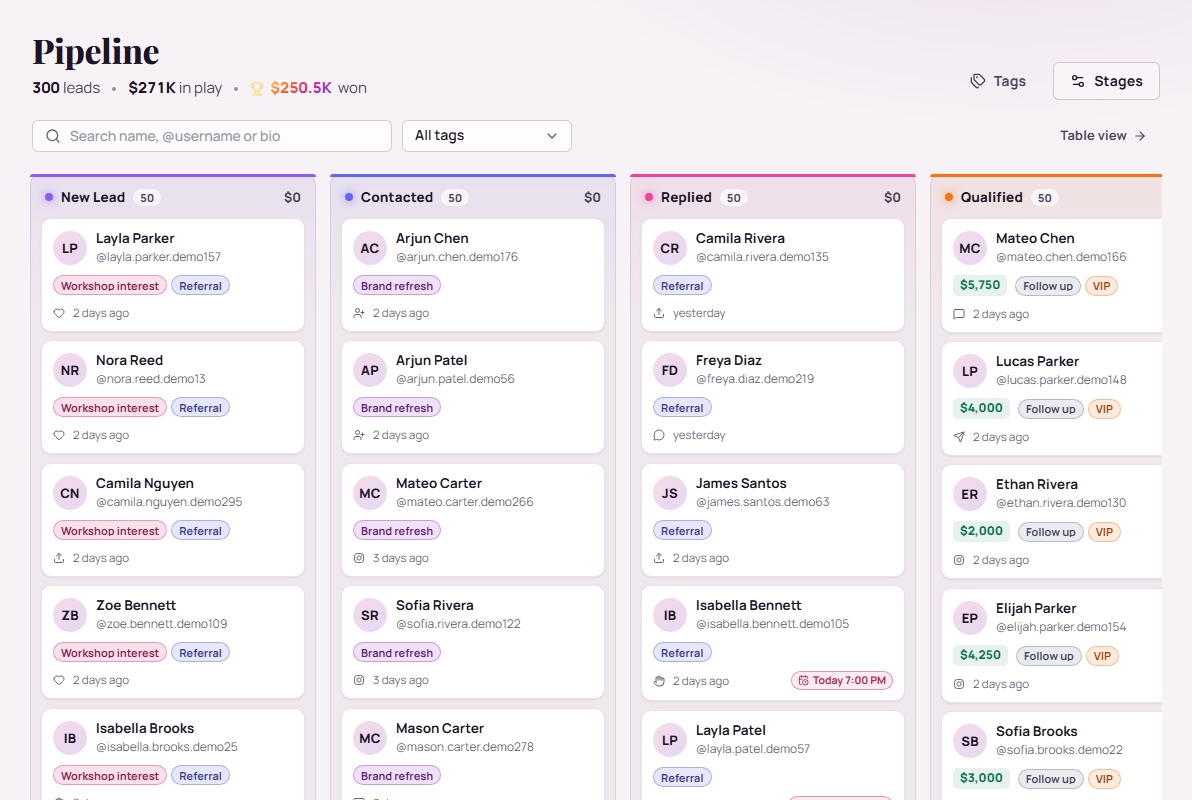
Open Pipeline in GramFather. The board includes Stages and Tags controls, search and a tag filter. The screenshot on this page uses demonstration contacts and values; it illustrates the interface rather than customer performance.
Select Stages to open Pipeline stages. The manager lets you add a stage, rename it, choose its color and type, and change its order. Stage types include Open, Won and Lost. Choose names that correspond to your sales process.
A starting sequence could be New enquiry, In conversation, Qualified, Offer shared and a confirmed outcome. Those names are suggestions you can adapt. Make each stage’s entry condition explicit before using it. A Won stage should reflect your verified business definition of a completed purchase.
2. Find a contact and add the business context
Open Contacts. Search can find a name, Instagram username or bio text. Stage, tag and source filters help narrow the list. Open a relevant contact and review the existing information before adding anything.
Use a short note with four parts: the person’s goal, the offer discussed, the question still open and the next step agreed. For example: “Wants help choosing monthly topics. Planning package discussed. Needs confirmation about caption revisions. Send scope outline Thursday.” This is a hypothetical record, not a suggested assumption about a real person.
The contact panel includes Stage, Deal value and tags. Record a value only when you have a consistent basis for it, and treat the CRM amount as a recorded business value rather than a payment verification.
3. Add one useful tag and a next move
Use tags for distinctions you want to find across stages, such as interest in a particular service or a known referral source. Keep the current sales position in the Stage field. Start with a short tag vocabulary and add a new tag when it supports a real review or action.
In the contact’s Next moves section, enter a specific action such as “Send the planning scope outline.” Add the date and time if you have agreed one. The form offers quick date choices including Today, Tomorrow and Next week; confirm the resulting time fits your agreement.
Open the main Next moves page to review tasks. Its To do and Done views help distinguish outstanding work from completed actions. Mark a task complete after doing the work and update the note if the conversation changes.
4. Verify the setup from end to end
- Find the same contact again using search or your chosen tag.
- Check that the stage matches the current conversation.
- Read the note as if another person had written it.
- Confirm that the next move names a concrete action.
- Check that the due time and completion state are accurate.
Use one genuine enquiry for this check so you can see whether the record contains everything you need. If a field requires guesswork, clarify the underlying business definition. If a tag is never useful in a review, reconsider why it exists.
Contacts also provides Import CSV and Export CSV controls. If you decide to import existing records, review the import wizard’s mapping and preview first. The downloadable worksheets in these guides are planning resources, so verify their columns against the importer before using them as import files.
Build the habit alongside the setup
After each meaningful conversation, update the stage, note and next move. Review outstanding promises regularly and reconcile confirmed sales against your actual transaction records. This turns a configured CRM into a dependable working routine.
Use the tagging guide to refine your labels and the weekly review checklist to keep the board current. Begin with a manageable group of active opportunities.
Create a free GramFather account without a credit card. Signup currently includes email and U.S. mobile verification. Browser actions require the Chrome extension and an available signed-in Instagram session. AI assistance uses a connected provider account with separate usage charges.
Your questions, answered
Which GramFather pages do I use for CRM setup?
Use Pipeline for stages and the board, Contacts for finding and filtering people, and Next moves for follow-up tasks. A contact panel holds the individual relationship context.
Does a recorded deal value confirm payment?
A CRM deal value is a recorded amount. Confirm purchases through your actual transaction records before treating them as completed sales.
How many stages should I start with?
Use the smallest set that reflects distinct decisions in your sales process. Define when a contact enters each stage and expand only when a real workflow needs it.
Build a clear home for your next enquiry.
Start with one contact, a useful note and a concrete next move.
Set up my Instagram CRMNo credit card required. Email and U.S. mobile verification. AI provider usage billed separately. Browser actions require the Chrome extension and an available Instagram session. View account details.